Orders Management
General summary
At this session we will give the information of the BEES Checkout process, covering all the Orders life cycle. Explaining and showing the requirements and technical view of the Orders Service, giving a view and explanation of how to proper use them, providing a practical how to use.
The Order is generated when the user completes his purchase on the BEES app, meaning it has been through the cart and checkout service, and then the checkout generate the order; or it can be provided by the ERP, for more information see Orders Placement section. In this case, Orders relay only accept POST, meaning the normal flow of the order to be input will first be input by the checkout service.
Order Placement
The Order is superficially the representation of the process the customer perform on a purchasing product for his establishment, since its creation, containing the status of the order to represent the last stage it has been set, for example accepted, canceled or finished.
Our solution can integrate orders created on the BEES platform or other channels such as Telesales. After properly integrate with the Zone, the orders can be displayed.
Architecture
The first point of relevance to understand the flow of the order, is the beginning of it, where it is created, the order, independent of the source (BEES App, ERP telesales), has to be properly provided by the CHECKOUT SERVICE which can be considered the point of entrance for new orders. The Order Updates or, Order History, is received by the Order Relay.
There are two micro services directly related to the order placement process, being them:
Checkout Service - see Checkout Service Documentation.
Order Service.
The Order service is divided in applications to handle different activities. The Order Service API receives requests originating from the BEES and contains the endpoints to fetch orders. The Data-Ingestion is responsible to receive messages from the ERP, that could be orders updates or orders created on other channels. The Order Relay is executed by Data Ingestion and the Order Consumer is responsible to process asynchronously the messages and enrich the order with items and combo information.
To check a full cycle of the generation of the order check the illustration bellow:
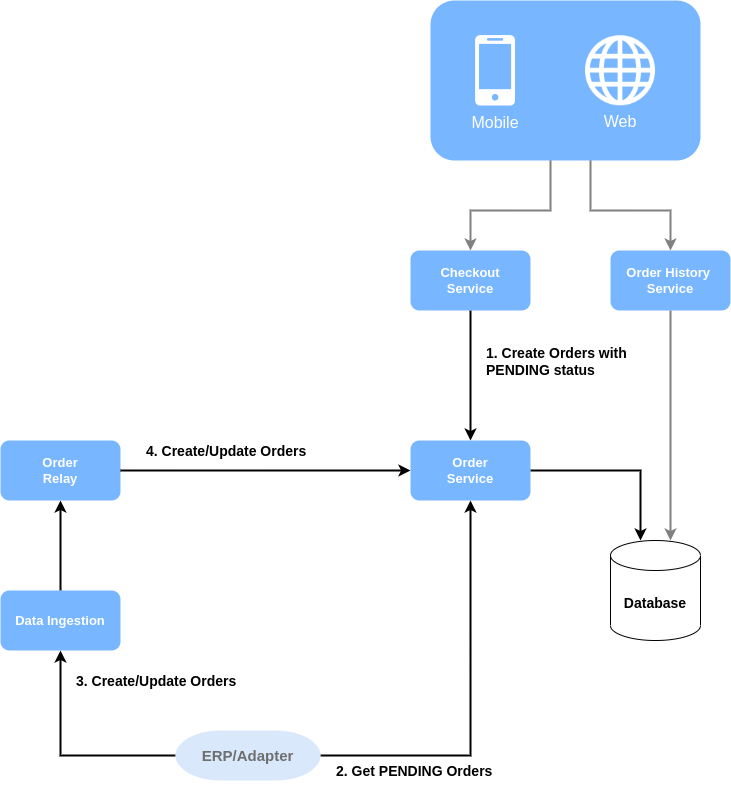
After the order is properly updated and stepped forwarded in this correct flow, it is important to remind that the INVOICES and RATE MY DELIVERY services are depending on the orders, meaning that a correct flow in the order will provide a good working flow for the next steps on the next services, for a better understanding of the mentioned services it is highly recommended to give a read on the Invoices Documentation and the Rate My Delivery Documentation.
Requirements to place an Order.
To be able to create an order first we need to guarantee that the follow steps are completed
Feature
Description
Documentation
Mandatory
Load Prices Process
The Price Engine service contains all the rules regarding prices
yes
Configure Catalog
The Catalog Service is responsible to “control” with items, promotions and deals that the user can buy
yes
Configure Accounts
The Accounts Service contains the POC information
yes
Configure Promotions
The Promotion Service contains all the rules regarding promotions
no
Configure Combos
The Combos Service contains all the rules regarding combos Items
no
Configure Empties
The Empties Service contains all the rules regarding empties Items
under construction
no
Configure Inventory
The Inventory Service handles the information if the item is available on inventory.
no
Placing Orders from BEES Apps
The Checkout Service API is responsible to receive all calls from the BEES Apps regarding placement orders. After completing all the mandatory steps, the request must be sent to the checkout service API.
Adding or posting an Order with no id, may create a new order with a provided id that may be inserted on the database, giving it back to the request.
Since that the Apps are responsible to create orders there is no need to deep dive on Checkout Service API.
Placing Orders from other Platforms
To place orders that was not originated on BEES Apps, the ERP should sent it through the Orders Relay. Such as checkout service, Adding or posting an Order with no id, may create a new order with a provided id that may be inserted on the database, giving it back to the request.
Updating Orders (Order History)
All the Order Updates must be sent through Order Relay.
Highlight fields
It is important to highlight the following fields because of the impact they cause on the integration.
Name
Description
accountId
POC Unique Identifier, required field, not blank. E.g.: ACC00001
channel
The source channel which created this order, required field. E.g.: B2B_WEB
items.key
Item Unique Identifier used to track item changes, required field, not blank. E.g.: ID0039
placementDate
The date the usee place the order, cannot be changed , required field. E.g.: 2020-09-14T20:05:00+00:00
Limits
In this session is described the limit of entities to be inserted using the post endpoint in the relay.
Entity
Endpoint
Compressed
Limit of entities
order
/
yes
150
order
/
no
50
Orders Life cycle
To understand the Orders management flow we need to understand the possible status from the order:
PENDING
PENDING_PAYMENTS
PLACED
CONFIRMED
DENIED
MODIFIED
IN_TRANSIT
CANCELLED
DELIVERED
PARTIAL_DELIVERY
INVOICED
PENDING_CANCELLATION
In which may represent the current status of the given order, changing a status may generate a history for the order.
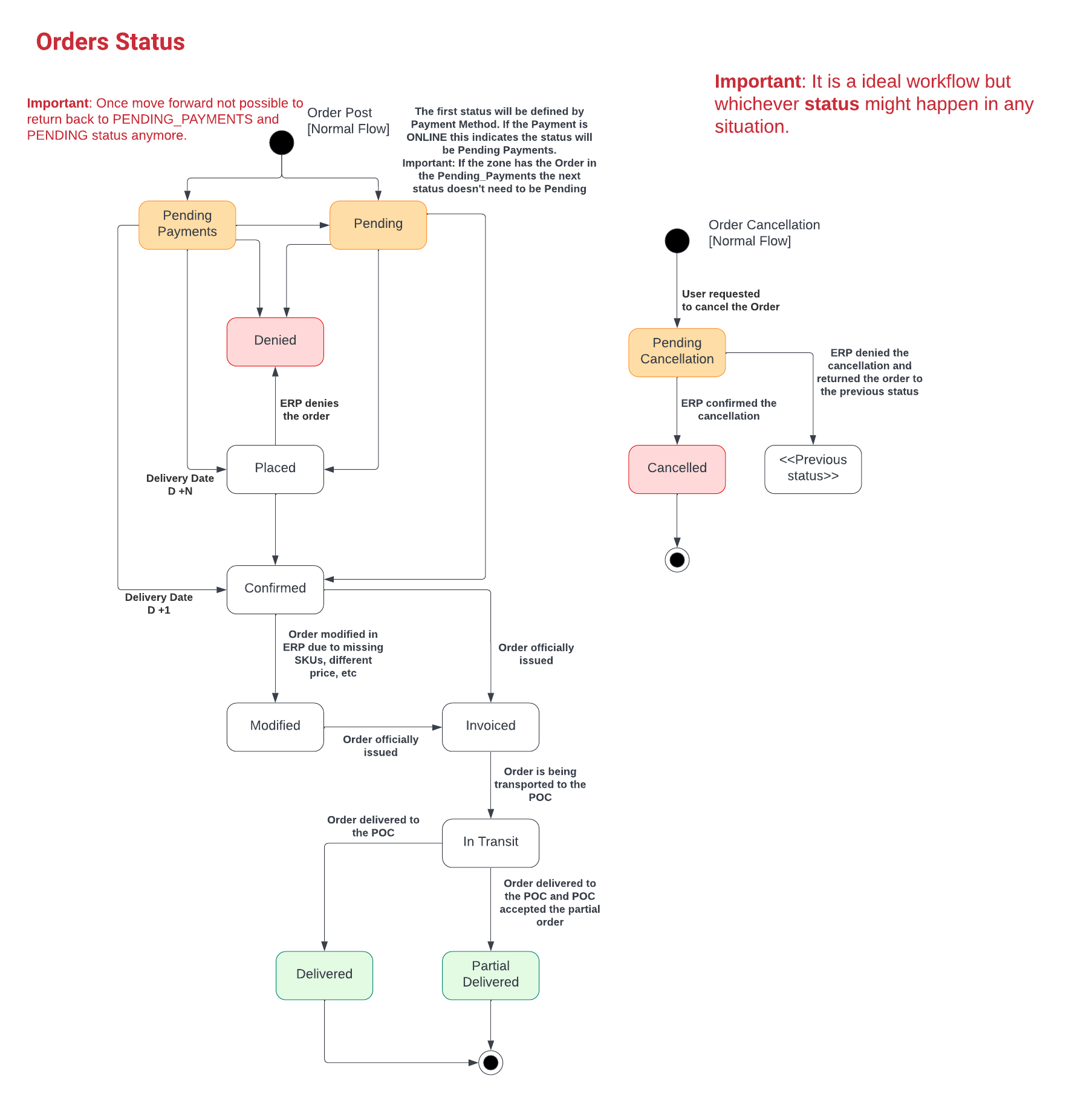
The status of the order represents its current state in the process, when an Order is created, it is represented by the status PENDING, meaning it is ready for be retrieved and processed.
When the order is accepted by the BEES, as a valid account to be continued in the process of delivering the product, it is settled with the status PLACED meaning the Order is already integrated with the ERP that zone uses, in this state (placed) there are only two possibilities for the zone to proceed where the Zone notifies the BEES that the order should be DENIED or generate and manage the Order on the zone ERP meaning the status should be CONFIRMED giving the order the access to the next status.
After confirming an Order, checking the items and price is the next step on this flow, and after agree that the Order is ready to the next level, the status should be indicated by MODIFIED and then the Order should be able to be settled as INVOICED.
When the order is currently invoiced, it means that the order should be forwarded to the customer, when it happens the Order should be settled as IN TRANSIT, meaning that the SKUs in the Order is currently being in the way to be delivered.
At the moment that it is delivered, there are two possibilities, when the customer actually receives its products, if there's an inconsistency with the SKUs notified in the order or even disagree with the delivery and accept it partially, it can be settled as PARTIAL_DELIVERY, otherwise it is accepted by the customer, meaning the order was actually DELIVERED.
At the beginning of the flow, if there is the need or error on the order, zone can request a cancellation of this order, being so, the order should be settled as PENDING_CANCELLATION, where in the ERP of the zone to search for this status on GET endpoint, and process as notified cancellation for the order, forwarding the order to CANCELLED.
Integrating Orders (Order Service GET)
The real matter of this endpoint is to retrieve orders that needed to be updated, using the filters by status, selecting the PENDING or PENDING_CANCELLATION to find the orders previously placed or modified by the user, that were not yet processed as a confirmed order by the zone (ERP or any other tool that the zone uses)
Is important to remember that order retrieved in this step of the order flow, still have fields to be updated and it is yet a collection of fields that should not be nullified, erased or disabled, in fact below are a few fields that should be considered in the updating the order after retrieving in the GET endpoint:
PricingReasonDetail
Combos
Items
Key
Items
key
PriceLists
CancellableUntil: (When the order cancellation is enabled)
Best practices when Integrating orders
The best practices to integrating orders is using filters to balance calls:
Filter by
Description
status
Balance calls filtering by status such as PENDING or PENDING CANCELLATION
deliveryCenterId
Balance calls filtering by deliveryCenterIds
pageSize
Limit results, 100 it's a good number.
deliveryDate (orderBy)
Order by delivery date to ensure d+1 orders are integrated first.
Most Common errors on Order Integration
The most commons errors that affects the order creation flow are:
Duplicated items
Items with same 'key' present multiple times on the order. With this error the order will be not properly updated. To avoid this issue the ERP should respect and send back the same fields during orders updates.
Updating order in other account domain
Orders that is already on BEES database with a different 'accountId' from the request. With this error the order will be not properly updated. To avoid this issue the ERP should respect and send back the same fields during orders updates.
Bad Request
This happens when BEES receives an invalid payload, missing required fields. With this error the order will be not properly updated. To avoid this issue the ERP should respect the contracts during orders updates.
Order Transparency issues
This happens when ERP updates an order and doesn't send the required information back. This issue will give bad user experience to the user, that will not be able to have full visibility of what changed on his order. To avoid this issue the ERP should respect and send back the same fields during orders updates.
Order Cancellation
The user can cancel the orders using the BEES applications, the call is made to the Order Cancellation Service, responsible to update the order status to PENDING_CANCELLATION and forward the message to the Order Relay. The ERP is responsible to integrate the order (GET on Order Service API), change the status to CANCELLED and post it back to the Order Relay.
Order Cancellation Requirements
The Order Cancellation Service runs the follow validations before update the order status. In case of failure the order is not modified.
If the current date is before the 'cancellableUntil' field.
If the order is not on the follow status PENDING_CANCELLATION, DELIVERED or CANCELLED
Since that the Apps are responsible to cancel orders there is no need to deep dive on Order Cancellation API.
Order Transparency
For every change that happens on the order it is reflected on Order Transparency ( My Orders). The order changes are calculated and persisted on the database on every order event ( Order Placement and Updates). The order transparency is capable to track changes on the order items and combos using the 'key' property on the payload.
Order Transparency Requirements
If the ERP didn't return the 'key' property on the update, the user will be impacted with a bad user experience, seeing duplicated lines on the screen.
Since that Order Transparency is calculated on every order Event, there is no need to deep dive on Order Transparency API.